This guide will walk you through how to host a 7 Days to Die server through playit.gg
Requirements
- 7 Days to Die - [steampowered.com]
- 7 Days to Die Dedicated Server - [steampowered.com]
Documentation
- 7 Days to Die Dedicated Server - Valve Developer Community - [developer.valvesoftware.com]
- Server - 7 Days to Die Wiki - [7daystodie.fandom.com]
Server
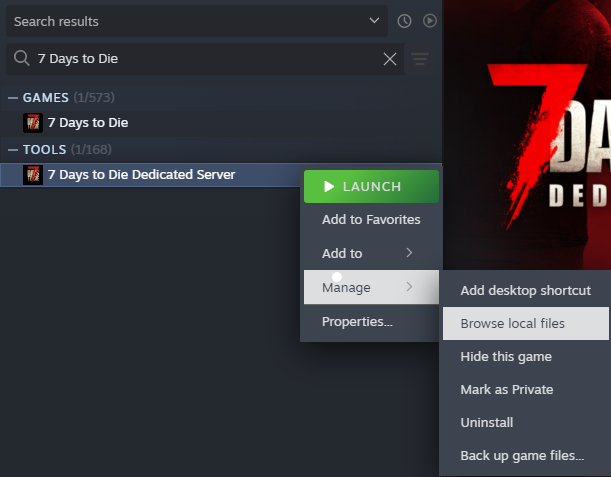
Find 7 Days to Die Dedicated Server in Steam, and then right click Manage and then Browse local files.
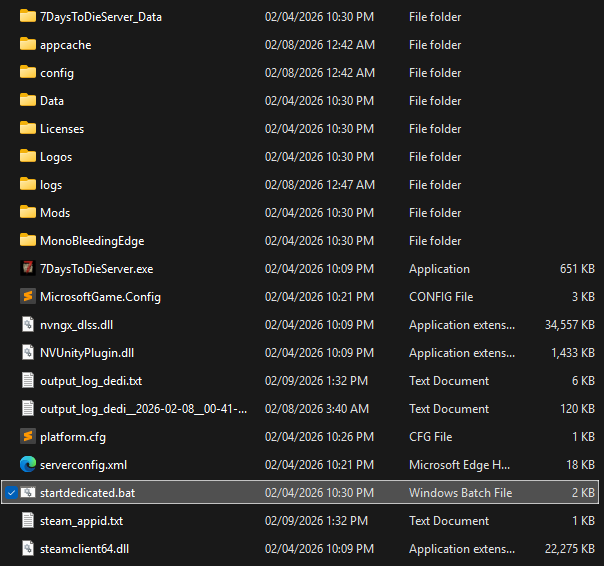
Inside of this folder, you will find startdedicated.bat. Double click this to start the server with the default configuration.
Creating a tunnel
This server uses
UDP 26900-26903, which means that all users can create this tunnel type.
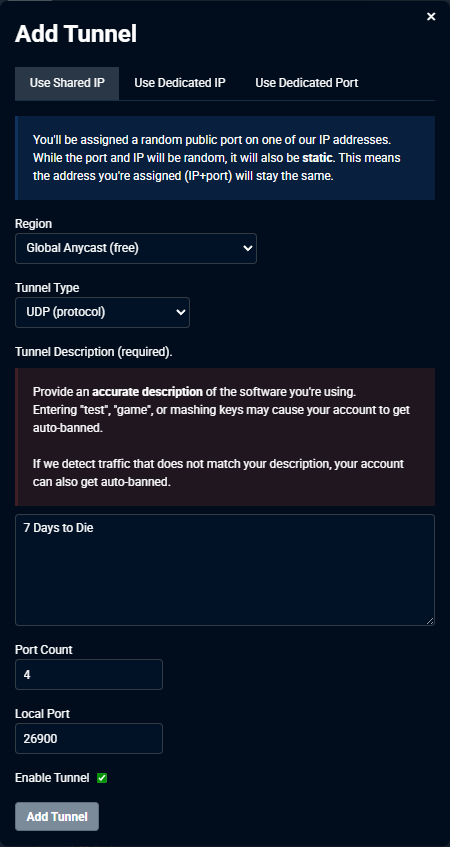
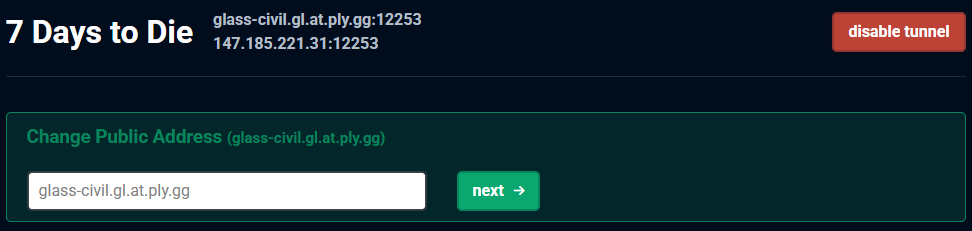
Set up the tunnel as follows:
Tunnel Type: UDP (protocol)
Port Count: 4
Local Port: 26900
Joining the server
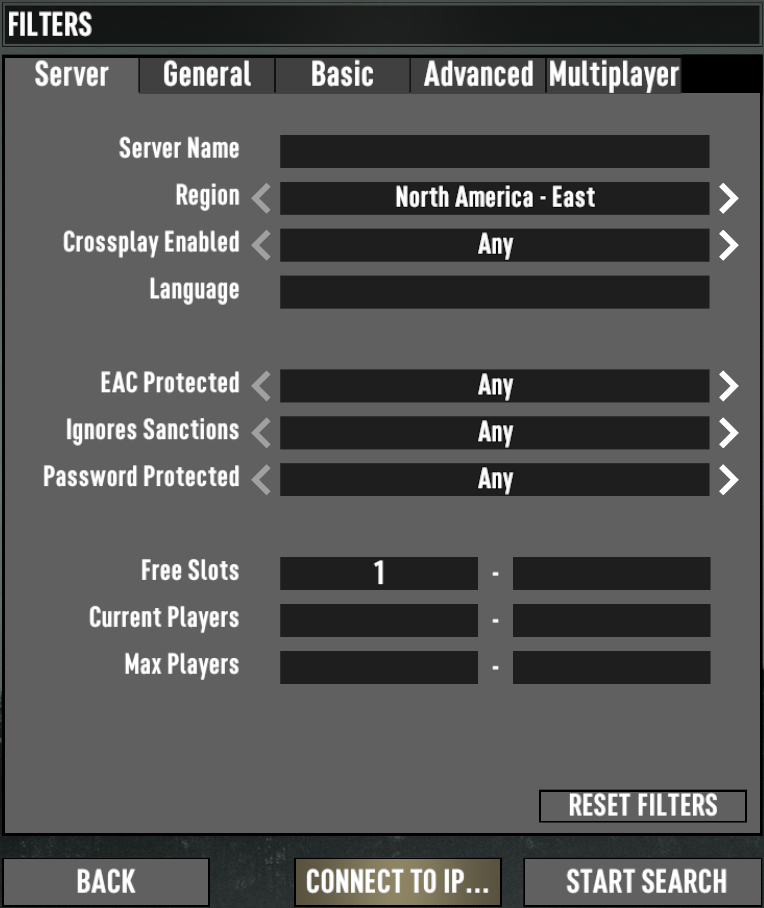
Inside of the game, go to Join A Game > Connect To IP... and then enter the tunnel information provided by playit. You can use either the hostname or the IP address and port to connect.
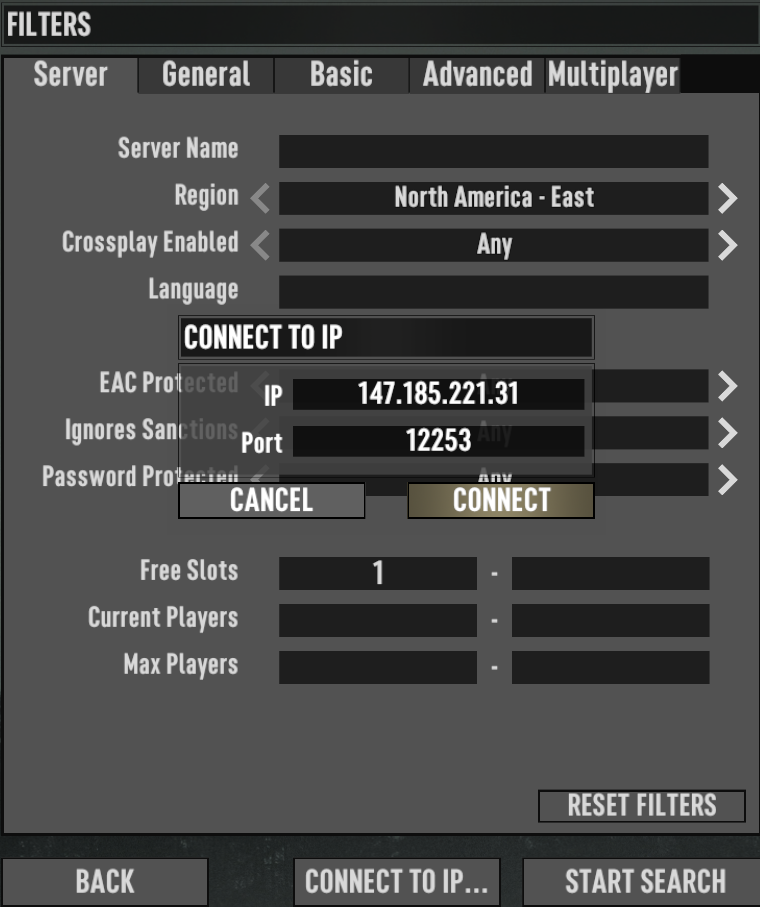
If your server and tunnel have been successfully configured, you should see this screen.